Introduction
I recently completed a hands-on Active Directory lab where I designed and deployed a Windows domain environment from scratch.
Instead of only learning Active Directory concepts theoretically, I wanted to build a working environment and validate each component practically.
The lab covered:
- Active Directory Domain Services (AD DS)
- Domain Controller configuration
- DNS
- Organizational Units (OUs)
- Users and Security Groups
- Group Policy Objects (GPOs)
- Windows 10 domain joining
- GPO enforcement
- IIS Web Server
- Client-to-server connectivity
The domain used in the lab was:
encrypter.local
Lab Environment
The basic environment consisted of:
Windows Server
- Active Directory Domain Services
- DNS
- IIS Web Server
Windows 10 Client
- Domain joined
- Domain user authentication
- Group Policy enforcement
The overall architecture was:
                Windows Server
                     │
          ┌──────────┼──────────┐
          │          │          │
         AD DS      DNS        IIS
          │
      encrypter.local
          │
          │
    Windows 10 Client
          │
      Domain Joined
          │
       GPO Applied
1. Preparing the Windows Server
Before installing Active Directory, I prepared the Windows Server that would become the Domain Controller.
Configure a Static IP
A Domain Controller should have a stable IP address so that clients can reliably locate Active Directory and DNS services.
Navigate to:
Network Settings → Network Adapter → IPv4 Properties
Configure:
IP Address:      192.168.1.10
Subnet Mask:     255.255.255.0
Default Gateway: 192.168.1.1
Preferred DNS:   192.168.1.10
These are example values. The actual addresses depend on the network used in the lab.
Then verify the configuration:
ipconfig /allTest basic connectivity:
ping <gateway-ip>Rename the Server
Before promoting the machine to a Domain Controller, I assigned it a meaningful hostname.
Example:
DC01After changing the hostname, restart the server.
2. Installing Active Directory Domain Services
The next step was installing the Active Directory Domain Services (AD DS) role.
Open:
Server Manager → Manage → Add Roles and Features
Select:
Role-based or feature-based installation
Choose the local server.
Select:
Active Directory Domain Services
When prompted, click Add Features.
Continue through the wizard and click Install.
At this stage, AD DS is installed, but the server is not yet a Domain Controller.
3. Creating the Active Directory Domain
After installing AD DS, I promoted the server to a Domain Controller and created a new Active Directory forest.
In Server Manager, select:
Promote this server to a domain controller
Choose:
Add a new forest
For the root domain, I used:
encrypter.localDuring the configuration, I enabled:
- DNS Server
- Global Catalog
I also configured the Directory Services Restore Mode (DSRM) password.
After completing the prerequisite check, I selected Install.
The server restarted automatically.
After reboot, the server was operating as a Domain Controller for:
encrypter.local4. Verifying Active Directory
After the restart, I opened:
Server Manager → Tools
Important management consoles include:
- Active Directory Users and Computers
- DNS
- Group Policy Management
- Active Directory Domains and Trusts
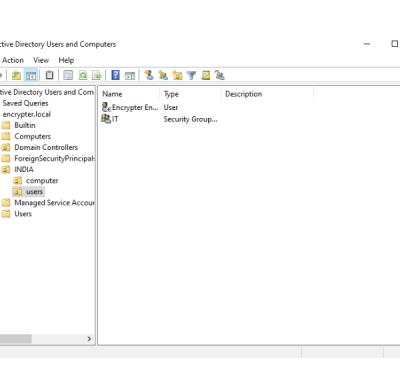
The main console used for user and computer management was Active Directory Users and Computers (ADUC).
5. Creating the Organizational Unit Structure
Instead of keeping all users in the default containers, I created a basic department-based OU structure.
For example:
encrypter.local
│
├── IT
├── Sales
├── Users
└── Computers
To create an OU:
Active Directory Users and Computers → Right-click the domain → New → Organizational Unit
I created departmental OUs such as:
ITSales
Why use OUs?
Organizational Units help with:
- Directory organization
- User and computer management
- Group Policy targeting
- Administrative delegation
- Scalability
For example, a GPO can be linked only to the IT OU instead of affecting every user in the domain.
6. Creating Domain Users
After creating the OUs, I created domain user accounts.
Inside the required OU:
Right-click → New → User
Then enter:
- First name
- Last name
- Username
- Password
For example:
Username:   encrypter-user
Department: IT
This account can then authenticate against the Active Directory domain.
7. Managing Security Groups
I also used groups to organize users and simplify permission management.
Example groups:
IT-UsersSales-Users
The basic concept is:
User
   ↓
Security Group
   ↓
Permissions
Instead of assigning permissions individually to every user, permissions can be assigned to groups.
This makes administration easier and supports the principle of least privilege.
8. Creating a Group Policy to Restrict CMD
One of the main security controls implemented in this project was a Group Policy Object (GPO) to restrict access to Command Prompt.
Open:
Server Manager → Tools → Group Policy Management
Create a new GPO and give it a descriptive name:
Restrict CMD AccessRight-click the GPO and select:
Edit
Navigate to:
User Configuration
→ Administrative Templates
→ System
Locate:
Prevent access to the command prompt
Set it to:
Enabled
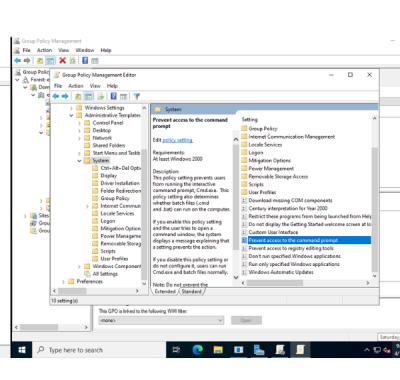
This policy prevents the targeted users from accessing the standard Windows Command Prompt.
9. Applying and Verifying the GPO
After configuring the GPO, I needed to confirm that the policy was actually reaching the client.
On the Windows 10 client, I used:
gpupdate /forceTo view applied policies:
gpresult /rFor a detailed HTML report:
gpresult /h C:\gp-report.htmlThis helps verify whether the expected Group Policy is being processed.
10. Joining the Windows 10 Client to the Domain
The next step was joining the Windows 10 machine to:
encrypter.localConfigure DNS
The Windows 10 client must be able to resolve the Domain Controller through DNS.
I configured the client's DNS server to point to the Domain Controller.
Then tested DNS:
nslookup encrypter.localAnd connectivity:
ping <domain-controller-ip>Join the Domain
On Windows 10:
Settings → System → About → Advanced system settings → Computer Name → Change
Select:
Domain
Enter:
encrypter.local(Your Domain Name)Provide valid domain credentials when prompted.
After successful domain joining, restart the client.
The computer should then appear in Active Directory Users and Computers.
11. Testing Group Policy Enforcement
After joining the Windows 10 machine to the domain, I logged in using the domain user and tested the configured policy.
The Command Prompt was successfully blocked.
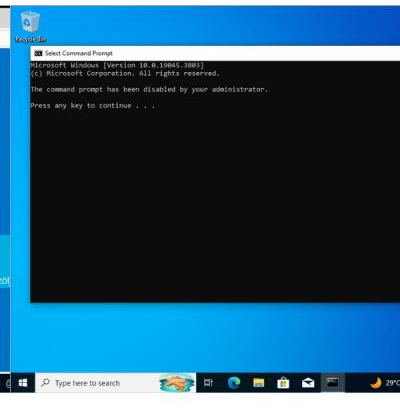
This confirmed that:
- The Windows 10 client successfully joined the domain.
- Domain communication was working.
- The user received the GPO.
- The configured restriction was successfully enforced.
This was an important validation step because creating a GPO does not automatically guarantee that the client is receiving it.
12. Installing IIS Web Server
After completing the Active Directory configuration, I deployed Internet Information Services (IIS) on the Windows Server.
IIS is Microsoft's web server platform for hosting websites and web applications on Windows.
To install IIS:
Server Manager → Manage → Add Roles and Features
Select:
Role-based or feature-based installation
Choose the local server.
Enable:
Web Server (IIS)
Complete the installation.
After installation, open:
Server Manager → Tools → Internet Information Services (IIS) Manager
13. Testing IIS
To verify the IIS installation, I opened a browser on the server and accessed:
http://localhostThe default IIS welcome page loaded successfully.
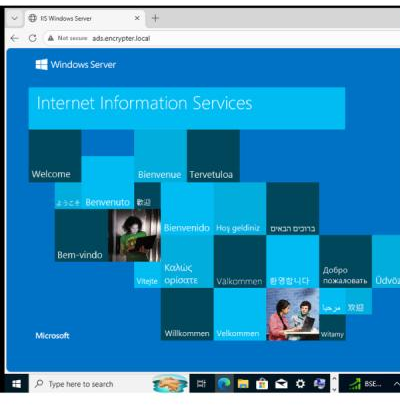
This confirmed that IIS was installed and serving HTTP content.
14. Accessing IIS from the Domain Client
The final step was testing connectivity from the Windows 10 domain client to the IIS server.
From the client, I accessed the server using its IP address or hostname:
http://<server-ip>or:
http://<server-hostname>The communication flow was:
Windows 10 Client
        │
        │ HTTP
        ▼
Windows Server
        │
        ├── Active Directory
        ├── DNS
        └── IIS
Successful access demonstrated that the domain client could communicate with the Windows Server and reach the IIS service.
15. Troubleshooting Commands
During an Active Directory lab, multiple services must work together. These commands are useful when troubleshooting.
Check IP configuration
ipconfig /allTest DNS resolution
nslookup encrypter.localTest connectivity to the Domain Controller
ping <domain-controller-ip>Refresh Group Policy
gpupdate /forceCheck applied policies
gpresult /rTest IIS locally
http://localhostTest IIS remotely
http://<server-ip>Key Troubleshooting Checklist
If something fails, check:
- DNS configuration
- Windows Firewall
- Network connectivity
- IIS service status
- Group Policy scope
- OU placement
- Windows Event Viewer
16. Final Lab Result
The completed lab demonstrated the following workflow:
Active Directory
      ↓
encrypter.local
      ↓
Organizational Units
      ↓
Users + Groups
      ↓
Group Policy
      ↓
Windows 10 Domain Client
      ↓
CMD Restriction
      ↓
IIS Web Server
      ↓
Client-to-Server Access
The environment successfully provided centralized identity management, policy enforcement, and web server functionality.
Security Takeaways
This project also helped reinforce several important security concepts.
Centralized Identity Management
Active Directory provides centralized management of users, computers, and authentication.
Least Privilege
Groups and role-based organization make it easier to provide only the access users require.
Centralized Policy Enforcement
GPOs allow administrators to apply security configurations across domain-connected systems.
Controlled Administrative Access
Restricting Command Prompt demonstrates how unnecessary tools can be limited for standard users.
Validation
Security configurations should always be tested from the endpoint to confirm that they are actually effective.
Next Steps
This lab can be expanded into a more security-focused Active Directory environment.
Some possible improvements are:
- Password and account lockout policies
- Windows Firewall configuration through GPO
- Windows Defender policies
- Dedicated Server and Workstation OUs
- NTFS and shared-folder permissions
- Windows Security auditing
- Sysmon deployment
- Wazuh or Splunk integration
- Active Directory attack simulations in an isolated lab
- MITRE ATT&CK mapping
- Kerberos and LDAP security monitoring
The next logical step would be turning this infrastructure into a Windows security monitoring and Active Directory detection lab.
Conclusion
This project gave me practical experience building an Active Directory environment from scratch.
I configured the encrypter.local domain, created Organizational Units, managed users and groups, implemented Group Policy, joined a Windows 10 client to the domain, validated policy enforcement, deployed IIS, and successfully accessed the web server from the domain client.
The project helped me understand how different Windows infrastructure components work together:
Domain → DNS → Users → Groups → OUs → GPO → Domain Client → IIS
It also provides a strong foundation for further learning in Windows Server Administration, Active Directory Security, SOC Operations, Threat Detection, and Penetration Testing.